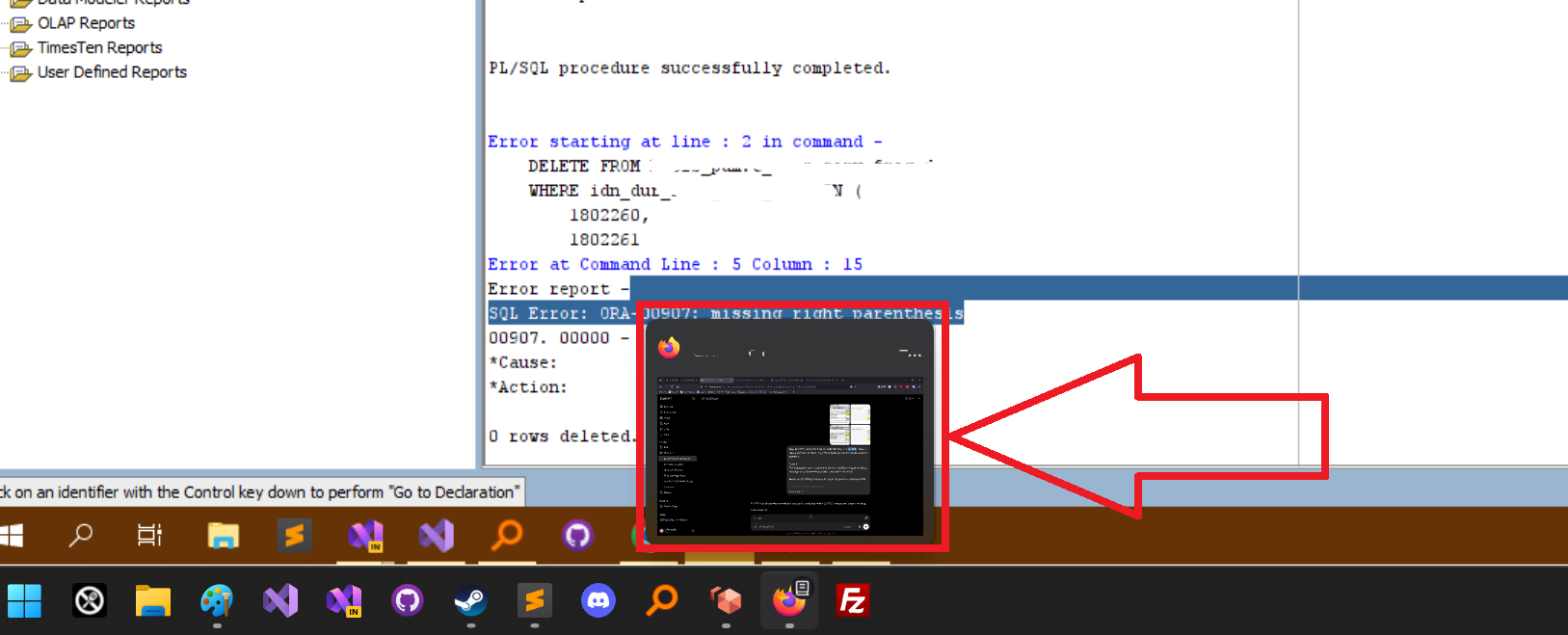
The reason I want it gone is it hides information that I need.
You’re seeing two taskbars because I’m viewing a remote desktop session.
In the above example, I hovered over firefox in the gray taskbar, and it popped up a preview window, hiding the info I need to see in the remote desktop session. It’s highlighted in red
Looks like you’ll need registry access, local group policy editor access, or rights to install a replacement start menu and taskbar. So if this is a corporate device you don’t have Local Admin rights on, then you just have to deal with it.
If you have local admin, the easiest/most reliable way appears to be to use group policy and adjust “User Configuration > Administrative Templates > Start Menu and Taskbar” then enable the policy “Turn off taskbar thumbnails”.
Technically that just sets one or more registry keys that control the feature, but in theory if Microsoft changes the registry keys that control it, they should also update the group policy to point to the new ones so things keep working automatically.
Note: Group Policy is not available on Windows Standard/Home installs. Only Pro and higher. If you’re on a Home version install you’d need to go the registry route if you don’t want to replace it entirely.
it’s a personal device
You need to be able to see that information specifically while hovering your cursor over a taskbar app? Seems oddly specific, my curiosity has me wondering why your cursor would need to sit in that specific location while referencing other information.
As someone else mentioned, you’ll need admin control of the system. I believe that, since Win11 25H2, there is no way to do this without third party software.
I’m pretty sure that DisplayFusion has that functionality.
WondHawk also has a plug-in to do that.
it’s a personal device
By installing StartAllBack. If it’s a corporate device, you’re shit out of luck.
it’s a personal device